
A Toolkit for every practice problem
A Toolkit button on practice problems shows the tools a working solution uses, with a short example in your language. The Syntax tab now has its own examples for all 17 languages, each run on the runner your code runs on.
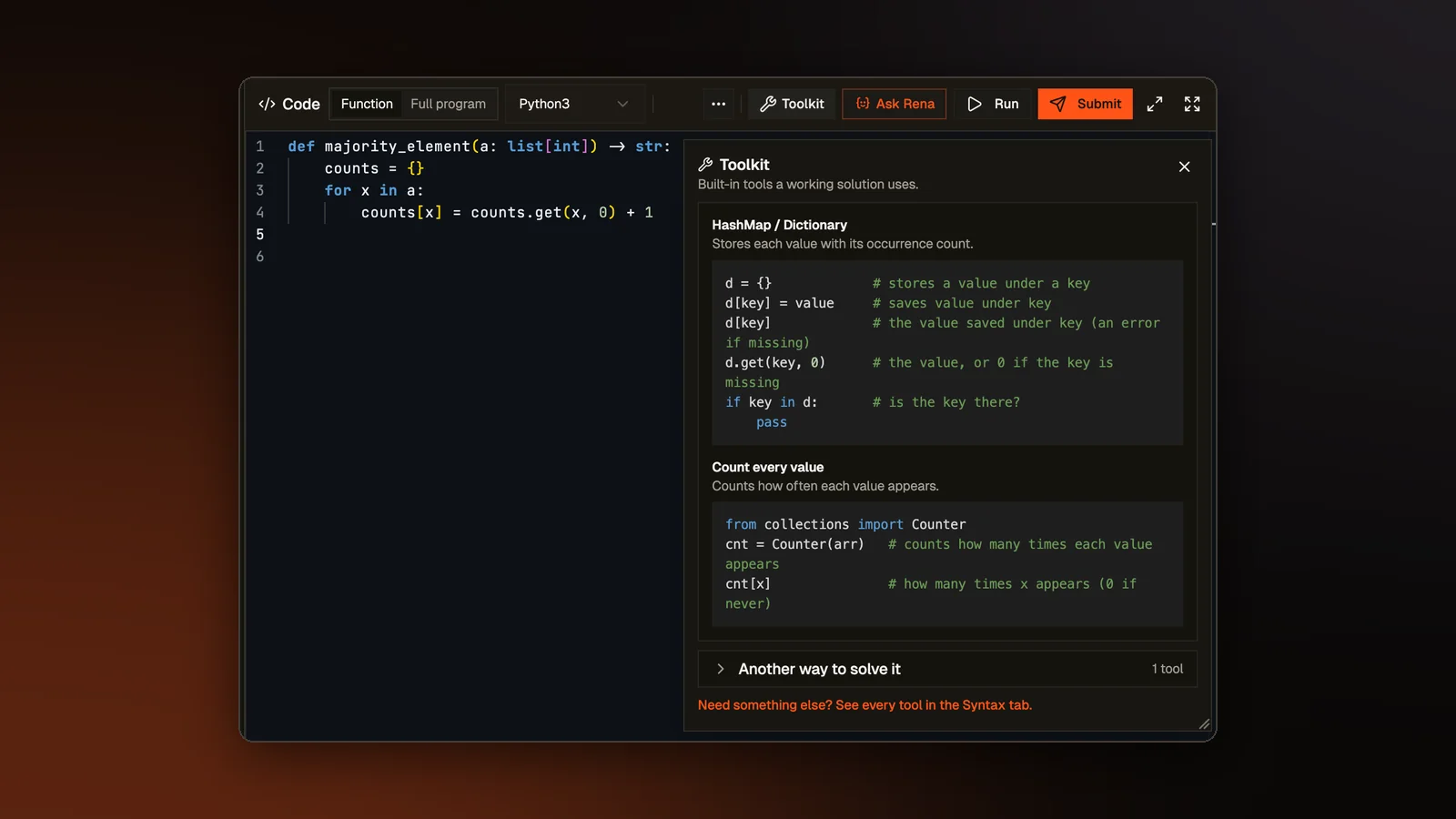
A beginner can know that their language has a function for the largest value in a list and still not think to use it on the problem in front of them. Practice problems now have a Toolkit button next to Run and Submit. It shows the tools from the language's standard library that a working solution to this problem uses. Each tool comes with a note of one line and a short example in the language you are writing in.
Where the tools come from
Nearly every problem in our library has expert solutions, grouped by approach. To build a problem's Toolkit, we scanned those solutions for the tools they use, so it never suggests a tool that a working answer does not need. An AI model wrote the note for each tool from our own statement and solutions. Each Toolkit keeps a fingerprint of the statement and solutions it came from, so when either one changes we rebuild only the Toolkits that are out of date.
No approach names
The first version listed a row for each approach, under names like Binary Search On Answer. A name like that gives the method away. Opening the Toolkit now shows the tools of one working solution at once, as a flat list with no name over it. The shortest solution goes first, so a beginner sees the tools of the simple approach before those of the clever one.
The tools for reading the input sit at the top. They are hidden when you write a function, since nothing is read from input then. Tools from other approaches stay in closed rows called Another way to solve it. Tools your approach does not need can slow a beginner down, so they stay out of sight until you open them. Our server also leaves the approach names out of the data it sends to the page, so they never reach the browser.
Opening the Toolkit counts as using a hint, the same as opening the hint panel.
A window you can move
The Toolkit opens as a window over the code editor, under its button. The problem statement on the left stays in view and the code does not move. You can drag the window anywhere on the screen and resize it from its corner, and it opens where you left it the next time. A link at the bottom opens the full list in the Syntax tab.
Battles, assessments and homework do not show the Toolkit, which is only for practice.
Real examples in every language
The Syntax tab lists 52 common tools with an example of each, such as sorting by your own rule, a dictionary, a heap and reading all the input at once. Until this change, only a few languages had examples of their own. C# and Kotlin showed the Java examples, while Ruby showed the Python ones. Each of the 17 languages in the editor now has its own example for every tool.
Every example was run. In Python, C++, Java and JavaScript, we ran all 52 to check both the code and the values its comments give. In the other languages, every example was run on the same code runner your code runs on. That runner uses older versions of several languages, such as Kotlin 1.3 and Swift 5.2, so examples that did not run there were rewritten until they did. The OCaml examples were run there for the first time, and the one that did not compile is fixed.
Each example also stands on its own. It creates or names whatever it uses, such as an input reader, imports, headers or constants, and its comments are plain sentences that say what each line does. The Toolkit shows the same examples, so the code it suggests is code that runs.
Try it on a real problem
Write code, run it against the tests, and see what passes. No account needed.