
Bring Your Own Backend to the Builder
A Builder project can now connect to your own Supabase or Firebase backend, with a ready client in the preview and the play link, plus mode, model, and permission pickers on the home screen before the first prompt.
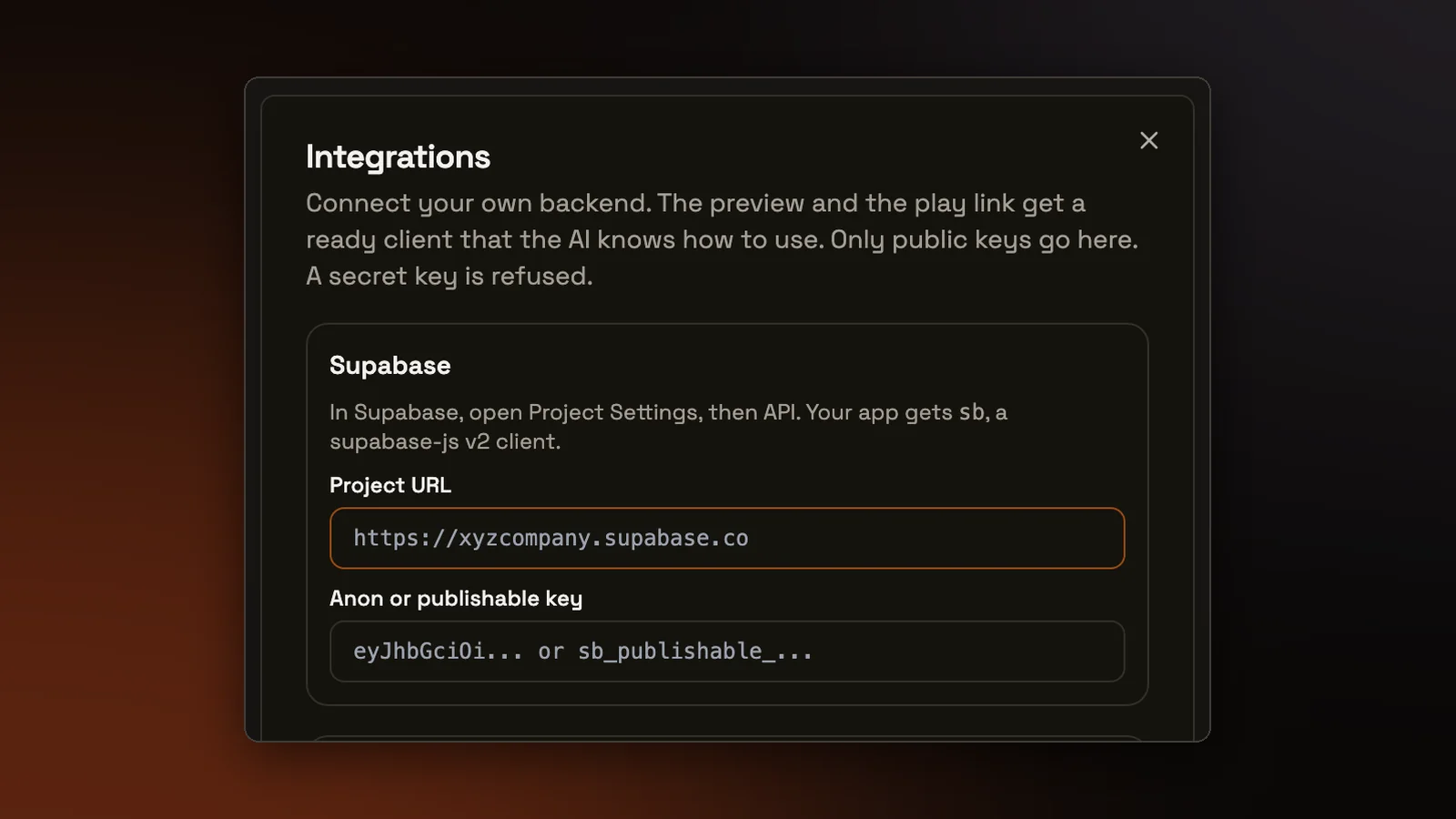
A browser game can keep its high scores in memory. A to-do list that is still there tomorrow, or a chat room two friends can both type into, needs somewhere to keep its data and usually a way to sign people in. A Builder project can now connect to your own Supabase or Firebase backend.
Connecting a backend
The plug button in the workspace toolbar, next to the Memory button, opens an Integrations dialog. For Supabase, you paste the project URL and the anon or publishable key from the project's API settings. For Firebase, you paste the config snippet the console shows for a web app, and the dialog fills in the fields from it. You can disconnect either one on its own. Duplicating a project copies its connection along with its files.
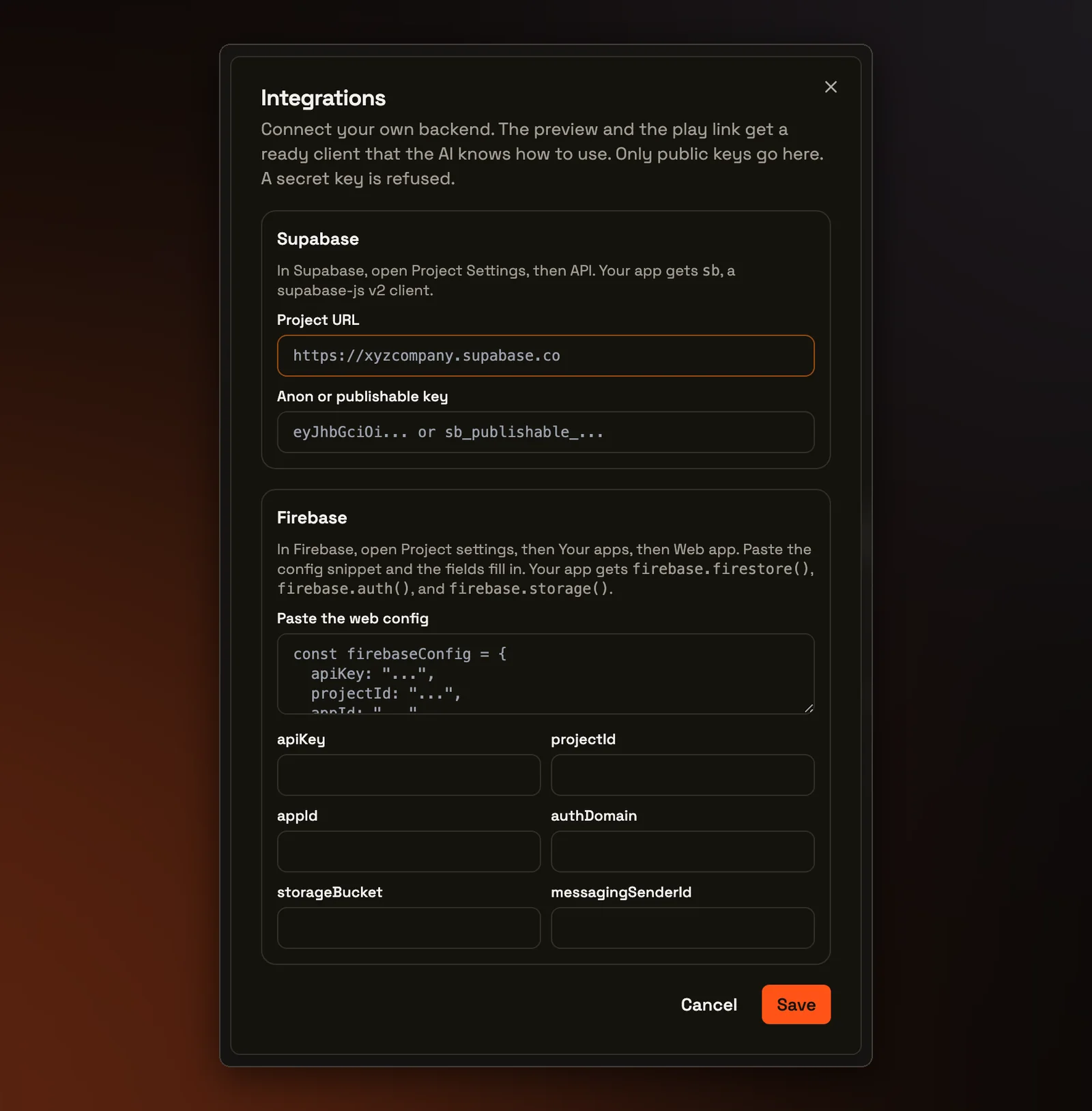
With a backend saved, the Editor's live preview loads that service's browser library and sets up a ready client before any of your app's own code runs. A Supabase connection gives the app one client for its tables, sign-in, live updates, and file storage. A Firebase connection gives it an app that is already initialized, with sign-in, the database, and file storage loaded.
The public play link loads the same client, so someone playing your shared project uses the same backend you built against. Their sign-ups and saved data go to your backend, under whatever access rules you have set there.
What the agent is told
The Builder's agent is told which backend is connected and that a ready client already exists. Its instructions say to use that client and never create a second one. Your URL and keys are stored with the project, outside its files, and the agent is told never to write them into a file.
The agent cannot create tables in your Supabase project. When an app needs one, the agent is told to give you the exact SQL to run, including an access policy, and to handle a missing or empty table so the page does not crash. With Firebase, it is told to say which rules or sign-in method to turn on in the console. It is also told to prefer email and password sign-in, because sign-in popups do not open inside the preview.
Only public keys
The dialog accepts only the public settings that each service means to sit in browser code. Paste a Supabase secret or service-role key, which is meant only for servers, and the dialog explains in plain words why it cannot be used and which public key to paste instead. The server runs the same check again when the project saves.
Pick the mode before the first prompt
The Builder home screen, where you type what you want to build, now has the same three pickers as the workspace chat box: the mode (Code, Plan, or Ask), the model or Auto, and the permission level, which sets how much the agent does without asking you first. Before, a new project always started in Plan with full access and Auto, and none of that was visible until the first message had gone out. Whatever you pick carries into the project and its first chat.
That first prompt now runs in the mode you picked. It used to go out as Code even when the picker said Plan. In Plan, you get a plan, sometimes after a few questions, with no files changed. The workspace also opens straight onto your message, without the empty greeting that used to flash for a moment first.
Try it on a real problem
Write code, run it against the tests, and see what passes. No account needed.