
Classroom Pages Laid Out Like a Course
Class and assignment pages now follow the course layout teachers know from their school's course website, with a course index, a Participants table and a grade table. Teachers can also preview an assignment as a student.
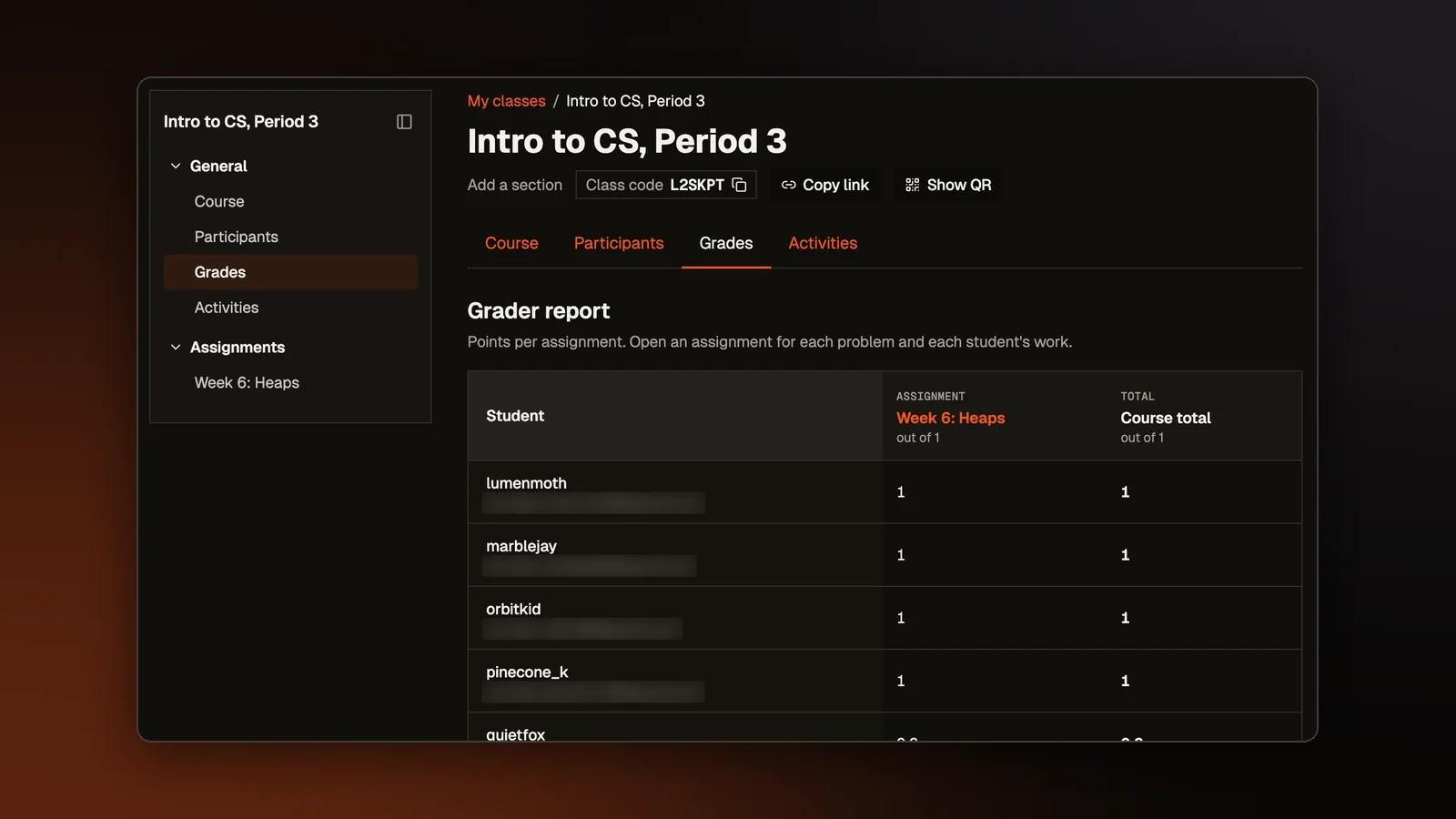
Many teachers already run their courses in a learning management system, the school website that holds course pages, grades and hand-ins. Classroom pages used to have a layout of their own. They now follow the course page layout those systems use, so each part is where a teacher expects it.
The class page
A class page now has a course index down the left side, a trail of links back to My classes, the class name with its class code, and four tabs: Course for the class's posts, Participants, Grades, and Activities for its assignments. The index lists the same tabs and every assignment, in sections that fold. The page remembers whether you hid the index, which starts hidden on a phone. The colored banner and theme pickers are gone, replaced by the site's own colors.
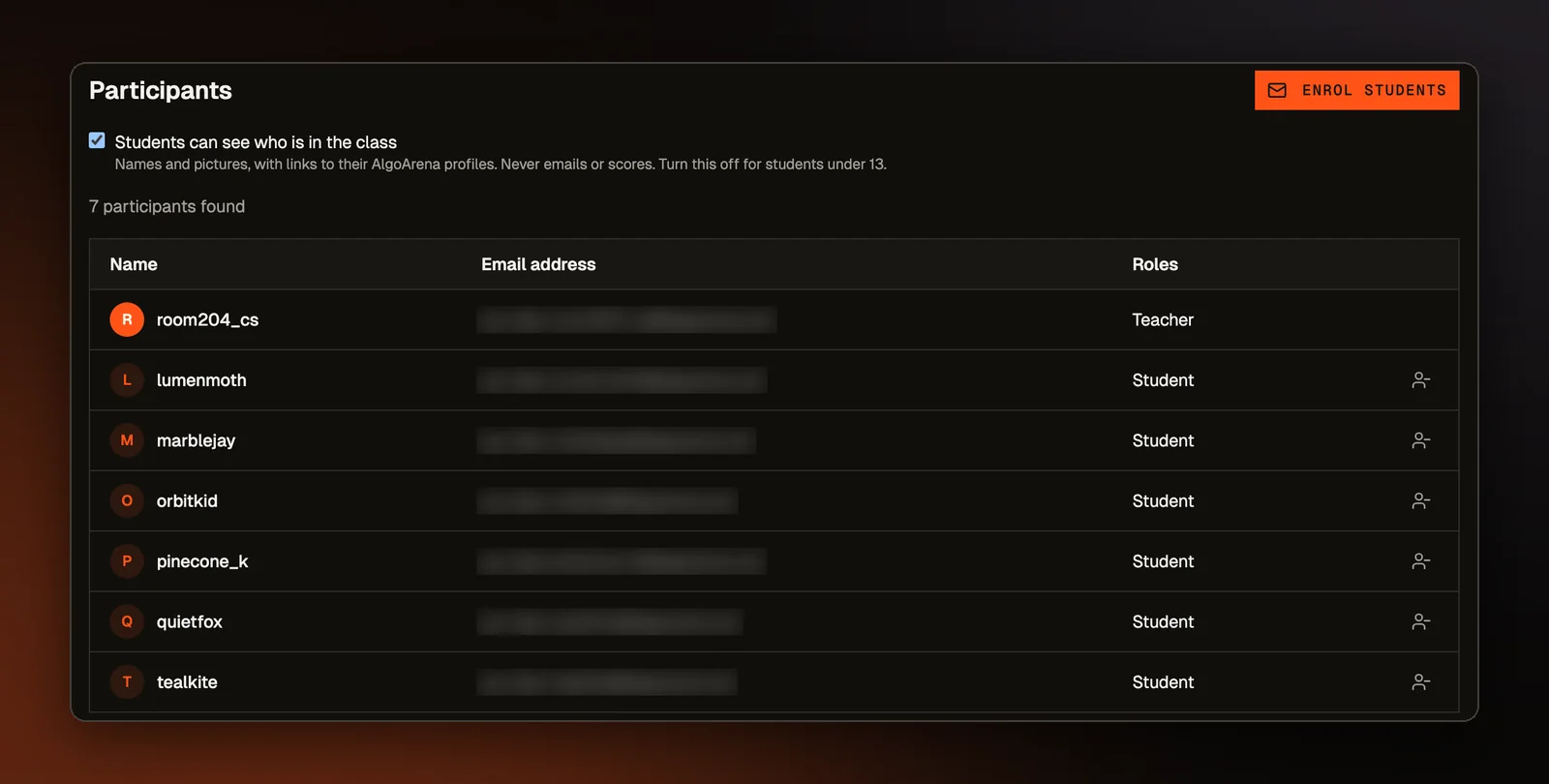
Participants is one table with the name, email and role of the teacher and every student. Above it is an Enrol students button. Each student's row has a button to remove them, which asks for confirmation and explains that the student loses access to the class and its assignments but can rejoin with the class code.
Grades is a table with a row for each student and a column for each assignment. Each cell shows the points earned, each column heading shows the points possible, and the last column holds the course total. A student who never opened an assignment shows a dash in that cell.
Lists of classes and assignments
My classes is now an overview with a card for each class. The controls above the cards filter to In progress, Past or All, search, sort by newest or by name, switch between Card and List, and set how many classes show on a page. Each card has a banner drawn from a pattern of diamonds, squares or stripes, picked from the class itself, so a class has the same banner everywhere it appears.
The Assignments page is a table grouped by class, with columns for the assignment, its due date, problems, submissions and status. Assignments that belong to no class sit in their own group at the bottom.
On a teacher's assignment page, the trail of links leads back to the class, and the course index lists the grading steps first, then Statistics and Settings under Reports, then each problem.
What students see
A student's class page has the same index, links and tabs. Participants shows there too unless the teacher turned the class list off. The Grades tab shows only the student's own grades, with a row for each assignment giving how many of its problems they solved out of the total, and a course total at the bottom.
A student's My classes page shows each class as a card with the teacher's name and the next assignment due. Leave class is in the card's menu. The student's assignments are listed below the cards.
Each assignment opens as a course page of its own. The index lists its problems, and the Course tab shows each one with its kind printed above the name, such as Coding problem, Build with AI, Course lesson or Drawing. Grades shows the student's points with an assignment total. After that come the Scoreboard and a Questions tab, where students ask about the assignment and everyone on it can read the answers.
Preview as a student
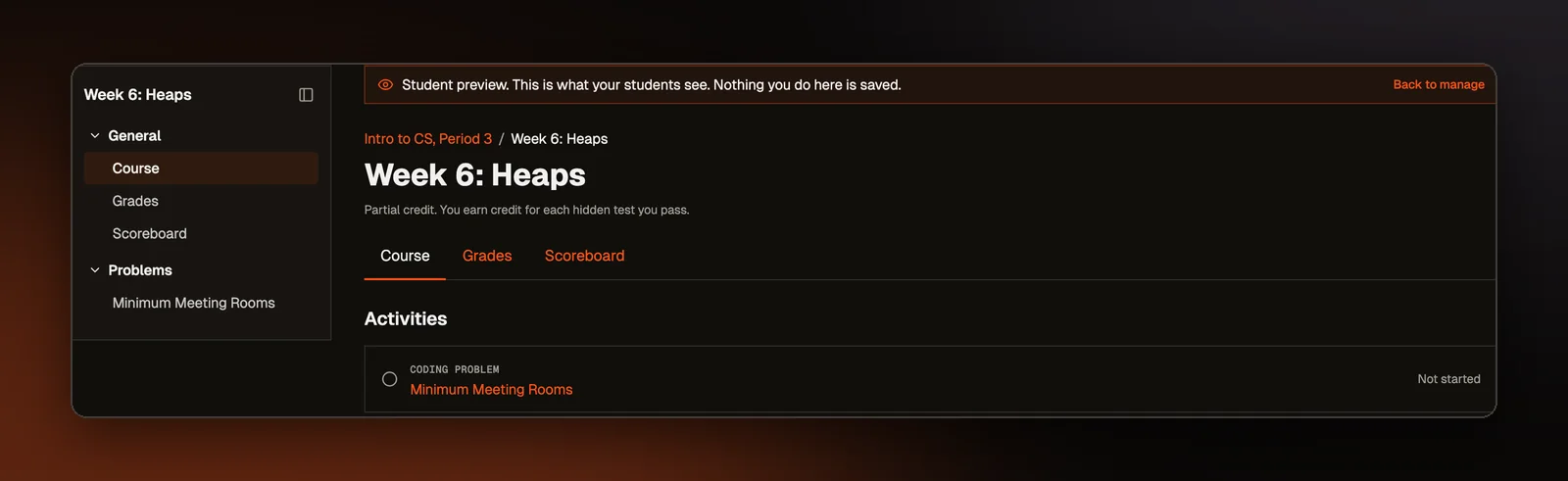
Teachers can now see an assignment the way students will. A Preview as a student button on the teacher's assignment page opens the student's version with a banner across the top that reads "Student preview. This is what your students see. Nothing you do here is saved." The banner stays on the code, quiz and lesson pages, and Submit is turned off there, so a preview never adds a score. A Build with AI problem opens in the same AI workspace students get, in a session of its own whose chat is not saved.
Build with AI matches Builder
When a student builds with AI in Classroom, the page now uses the same layout as Builder, our page for making apps with AI. The AI agent sits on the left, and Preview, Code and Console sit on the right, with the same divider to drag between them. The workspace fills the window under the site header, with one slim bar for the title, the brief and Submit.
When the teacher gives students an outside coding agent that runs in a terminal (a window for typing commands), the terminal takes the left side and the app preview stays on the right. On a phone the page shows one pane at a time, with a switch between Chat (or Terminal) and Preview, as Builder does.