
Each Section Gets Its Own Clock
An assessment that mixes No AI questions with AI questions can now run in sections. Each section has its own time, and its answers lock when it ends.
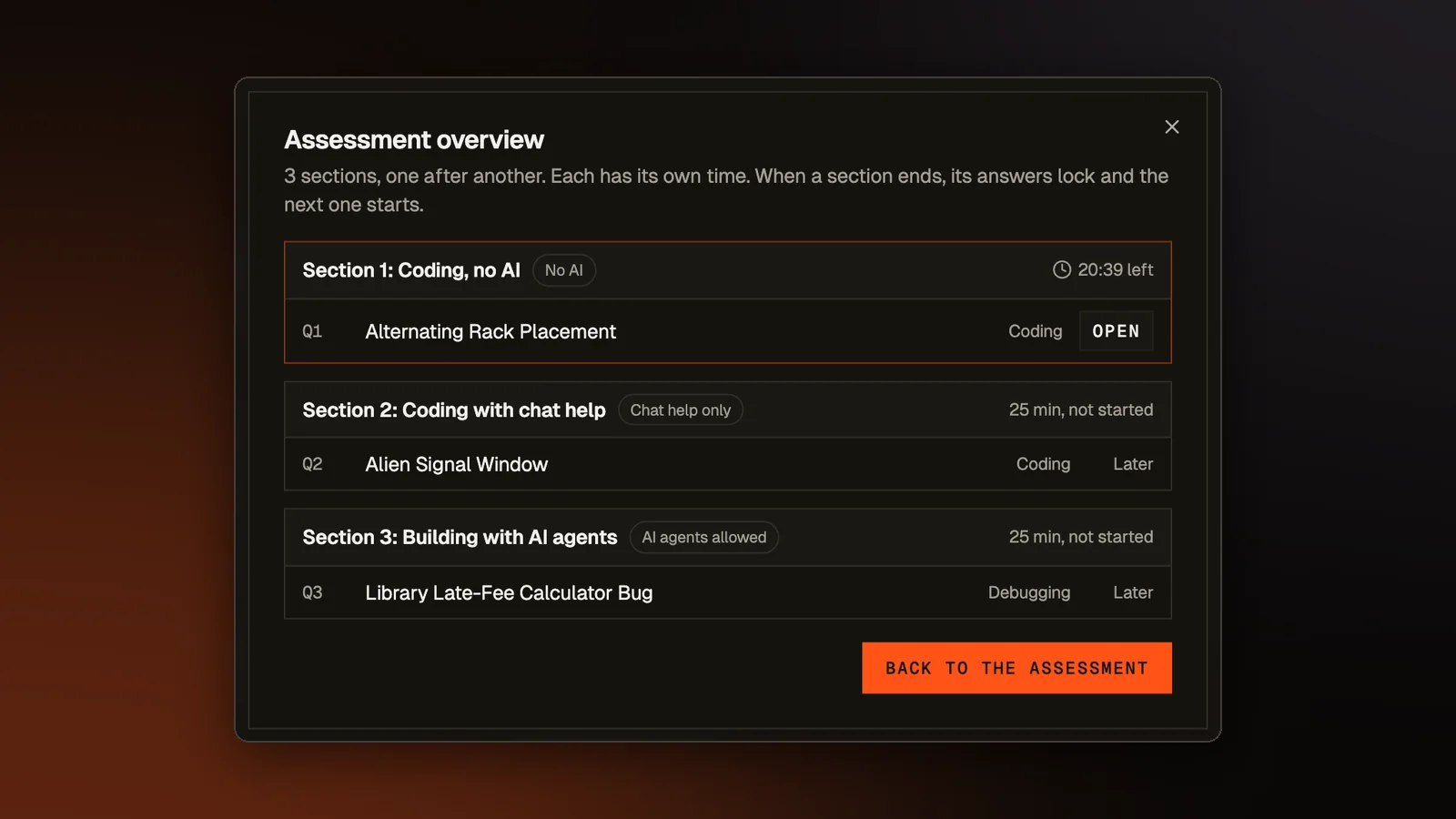
An assessment can give each question its own AI rule. One question might allow no AI at all, the next might allow chat help, and a third might give the candidate AI agents that write code for them. Until this change those questions shared one clock and were all open at once. A candidate could copy the text of the No AI question, switch to the agent question, and paste it into that question's AI chat, because the No AI rule covered only the question it was set on. A No AI question tells a reviewer something only if the work on it happened before any AI was in reach.
An assessment that mixes AI rules can now run in sections. The sections run one after another, each on its own clock. When a section ends, its answers lock and the next section starts.
Setting it up
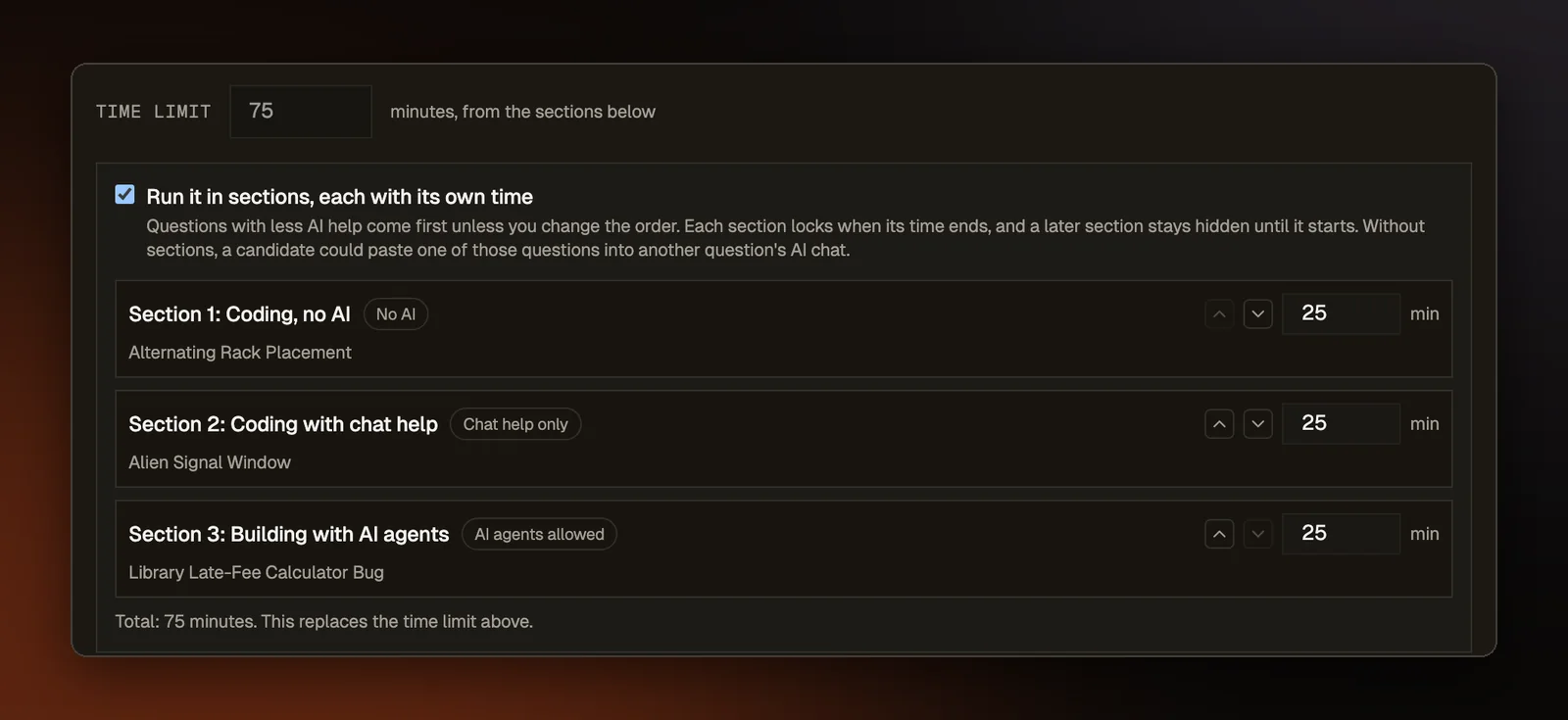
The option is in the assessment's settings, under the time limit. It appears only when the questions allow different amounts of AI, because with a single rule there is nothing to keep apart. The checkbox reads "Run it in sections, each with its own time." Turning it on groups the questions by AI rule into up to three suggested sections: coding with no AI, coding with chat help, and building with AI agents. The suggested minutes split the current time limit by how many questions each section holds, in steps of five minutes.
You set each section's minutes, and the assessment's time limit becomes their total. Each section also has buttons to move it earlier or later. The suggestion puts less AI first, but exams with a part that bans calculators run that part first in some papers and second in others, and we found no evidence that either order works better. In any order, a question in a later section cannot be opened until that section starts, so it never reaches an AI early.
Once the assessment is published, the sections can no longer change, the same as the time limit. While it is still a draft, editing the questions after you saved sections regroups them by AI rule, and each section keeps the minutes you gave it. Previewing the assessment yourself shows the sections too, so you can watch one section hand over to the next before anyone else takes it.
What the candidate sees
Before the timer starts, the setup screen lists the sections with their minutes and question counts.
During the assessment, the clock shows the running section's time, Previous and Next stay inside that section, and questions from other sections are greyed out in the question list. Hovering one says either that its section has ended and its answers are locked, or that it opens when the current section ends.
A button at the top of the question list opens an overview of the whole assessment, showing each section with its time, what AI it allows and its questions. Only the running section's questions can be opened from it. When a section ends, the overview opens by itself with a notice that names the section that just locked and the one that has started, with its minutes.
Each section now gets its own warnings at 10 minutes and at 3 minutes, and when another section follows, they say that the next one starts when this one ends.
Finishing a section early
Until the last section, the Finish button reads Finish section. It asks first, warning that the answers cannot change after this, and names the next section, its minutes and what AI it allows. Confirming saves the section's latest work, locks it, and starts the next section's clock at once.
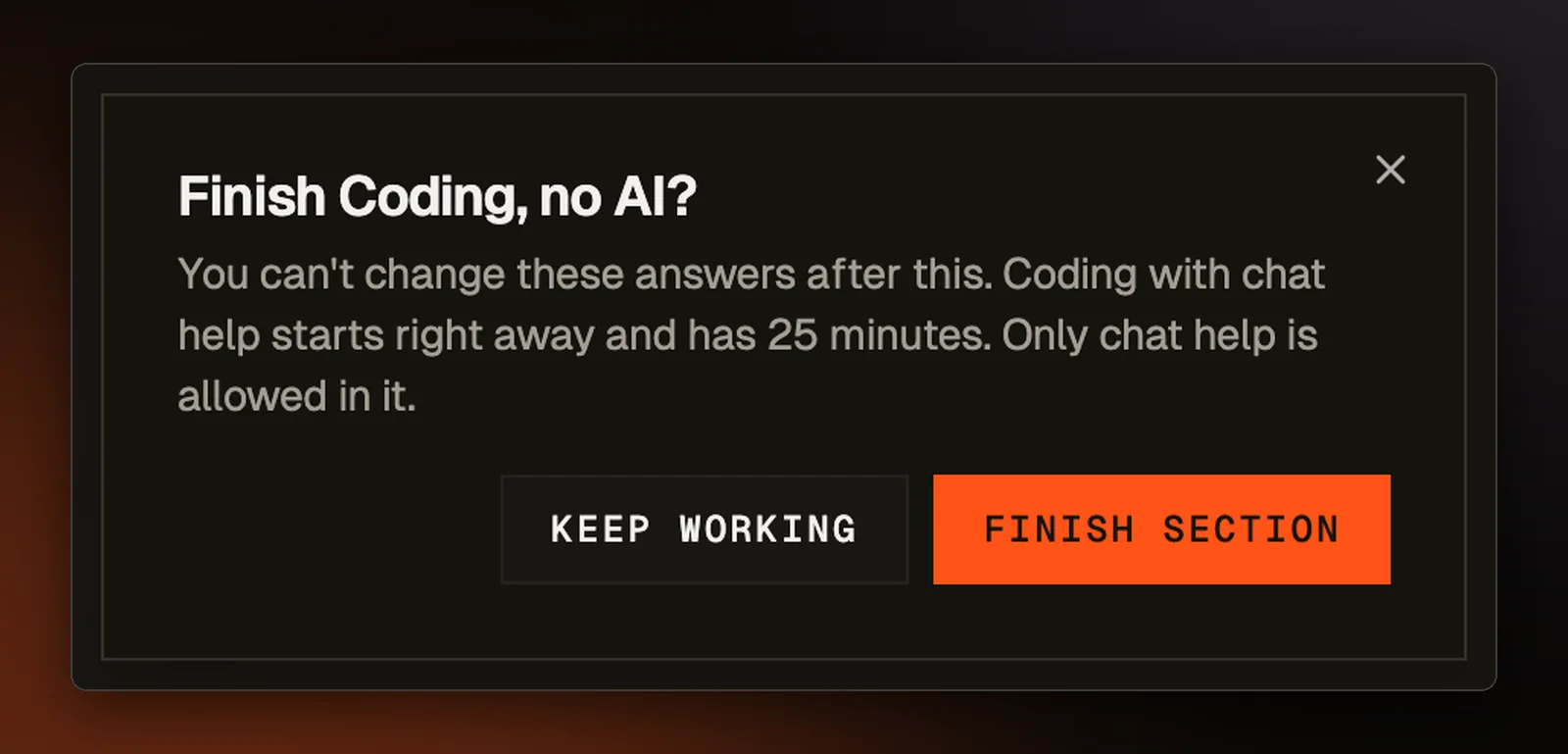
Unused minutes do not carry over to the next section, so the whole assessment ends that much earlier. If the candidate closes the tab after finishing a section early, the assessment is still submitted at the new, earlier end.
Checked on the server
Greying out a question only changes what the page shows, so our server enforces the rule too. It refuses to save, run or test a question outside the running section, and turns away that question's AI chat and terminal. A section whose time runs out hands over to the next one at its deadline whether or not the tab is open, so a candidate who reloads or comes back later finds the right section running. Two clicks on Finish section, or a second open tab, cannot end two sections at once.