
The Assessment Editor Looks Like VS Code
The Editor view in an assessment with AI help now copies VS Code's layout and shortcuts, questions sit in a numbered list down the left edge, and a No AI question shows no AI.
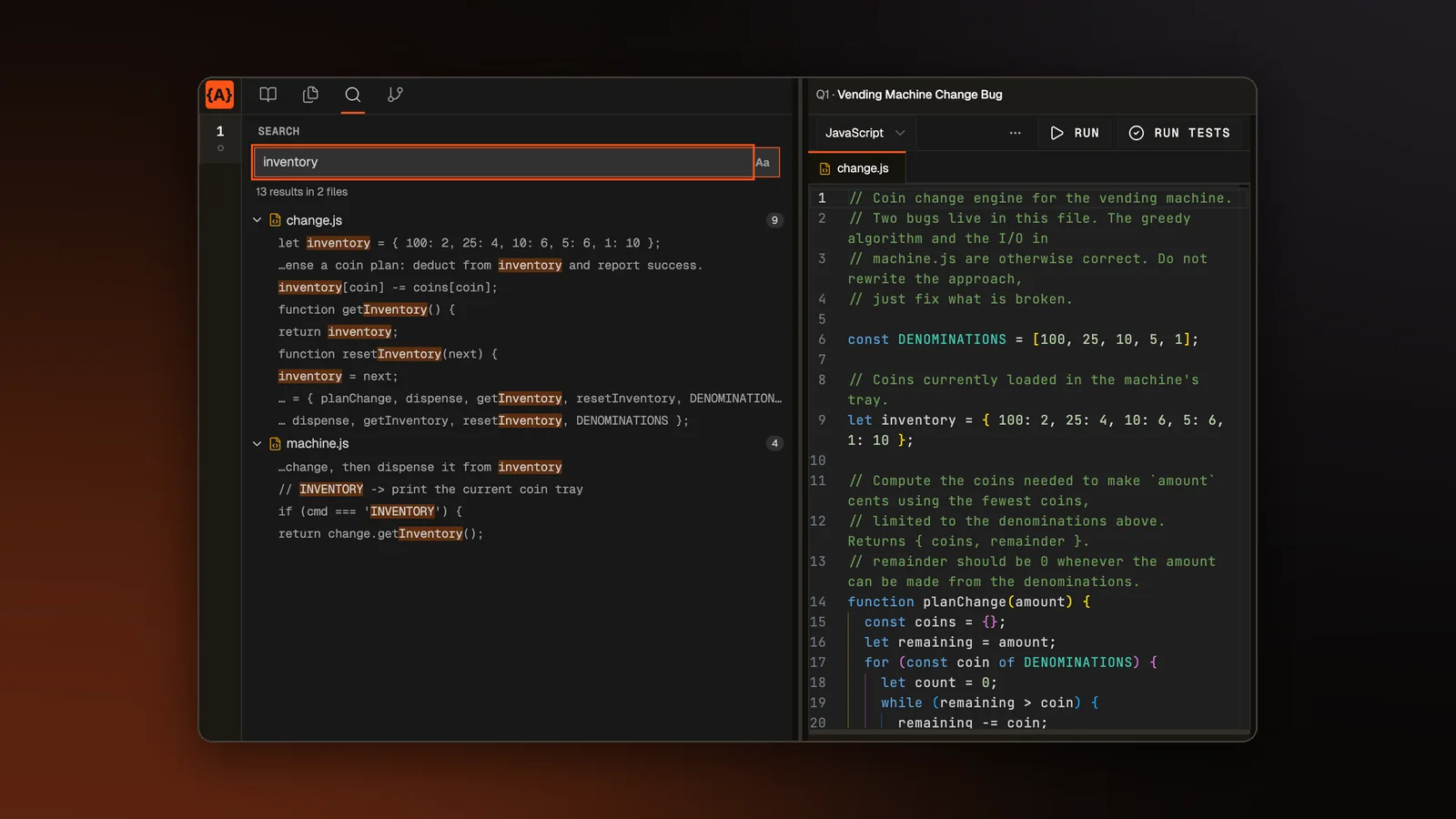
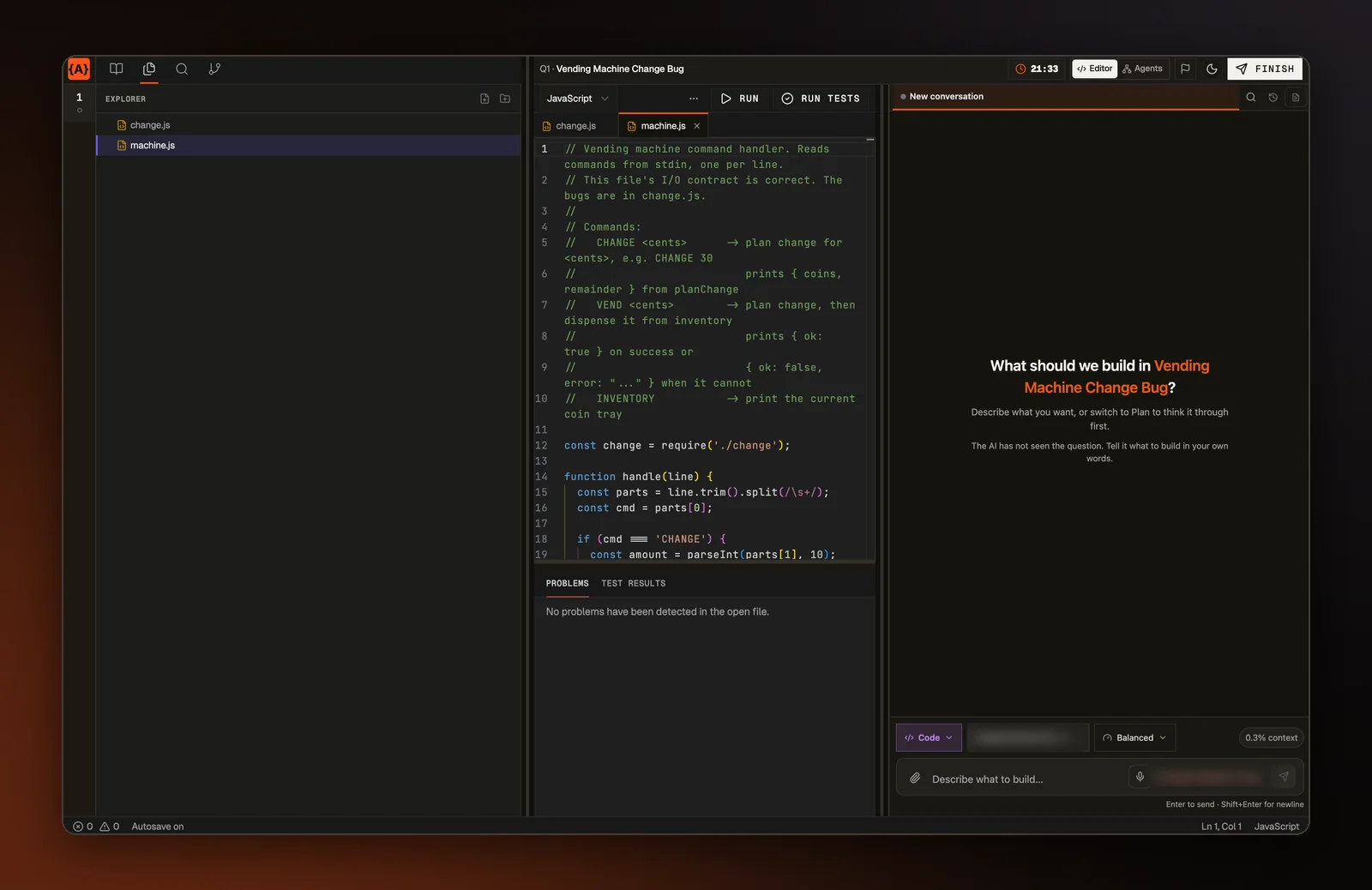
Many programmers write code in VS Code every day. Our assessment editor already had a file list, a code editor, a preview of the running app, a terminal and test results, but it laid them out its own way, and a timed test is a poor place to learn a new layout. Since October 9, the Editor view of an assessment with AI help, where you write the code yourself, opens in a layout that copies VS Code, shortcuts included.
The side bar
On a question with files, a row of icons at the top of the side bar switches between four views. Question shows the question text. Explorer is the file list, opened with Ctrl+Shift+E. Search, opened with Ctrl+Shift+F, finds text across every file in the question, and clicking a result opens the file at that line. Changes lists the files that differ from the question's starting files. Each is marked as added, modified or deleted, with how many lines were added and removed, and Review all changes opens the full comparison.
One row of tabs
Files you open stay as tabs above the editor, each with its own close button, and Preview, the running app, is one more tab in the same row. Preview now has back, forward and reload buttons and an address bar. The address is one page of your app plus whatever comes after a "#", which many apps use to switch screens, so typing about.html or #/team goes to that page or screen. Links from one page of your app to another now open that page in the preview. They used to lead to a page that did not exist. When the preview reloads after an edit, the app stays on the screen it was showing.
Ctrl+P, which used to print the page here, now opens a file picker. Type part of a name and press Enter to open the file, or add a line number, as in app.js:12, to open it at that line. Before you type, it lists the files you have open. Ctrl+Shift+P lists the editor's commands, such as Format Document and Go to Line.
The panel and the status bar
The panel under the editor has VS Code's tabs. Problems lists the errors and warnings in the open file, with a count on the tab. Console shows what your app printed, Terminal is the question's command line, and Test Results holds the last test run. A question that comes with its own machine to run commands on also gets Ports, which lists the servers you started from the terminal, each with buttons to show it in Preview, open it in a new browser tab, or stop it.
The status bar along the bottom shows the error and warning counts, which open Problems when you click them. It also shows the autosave state, the cursor's line and column, and the file's language. The colors are VS Code's default dark and light themes, with our orange as the accent.
Moving between questions
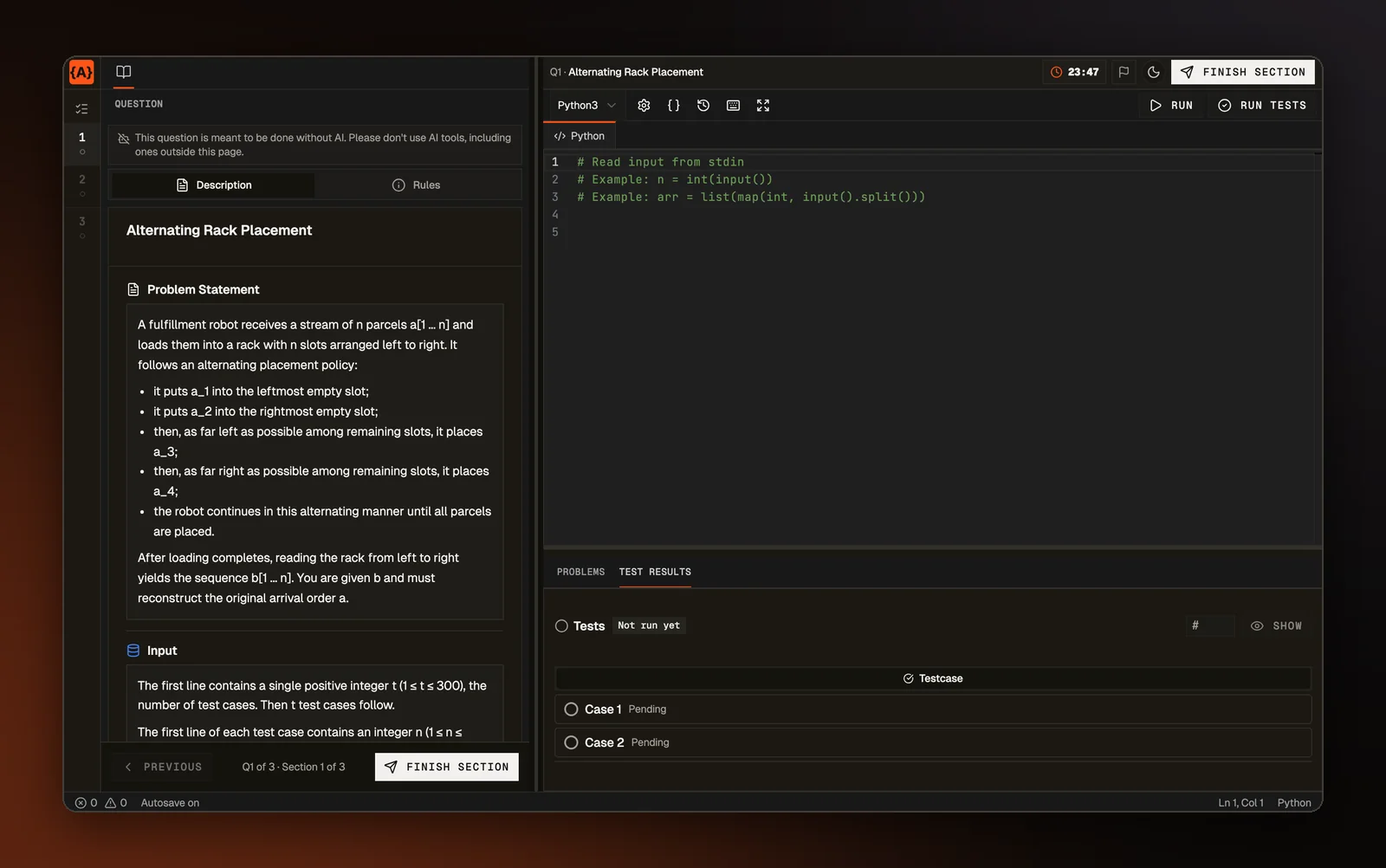
Question tabs used to run across the top of the page, where they looked like tabs for open files. Phones still have that strip, but on a wider screen the questions are now a narrow numbered list down the left edge. Each number has a small mark for its status and shows the question's title when you hover over it, while the header above your work names the question you have open.
Run tries the samples
On a question graded by test cases, Run now tries your code on the sample cases shown in the question. Before, the page with AI help had no Run on these questions, and the page without AI ran your code with no input at all, so any program that reads input crashed. Run Tests still grades every case, hidden ones included, and a sample run never counts toward the score.
A No AI question shows no AI
An assessment can give each question its own AI rule. A question set to No AI used to sit in the same window as the AI questions, with the chat panel still open beside it. That question now shows no chat, no Ask AI to fix button, no way to click part of the preview and leave the AI a note about it, and no code suggestions as you type. Our server also refuses chat messages and typing suggestions for that question. If a chat reply is still running on another question, it keeps going while you work on the No AI one.
What kept the older layout
Phones keep the older layout, and so does the guided walkthrough, which points at the older layout's controls one by one. An assessment with no AI on any question, made of questions that need only an editor and test cases, opens a simpler page of its own. That page now has the same numbered question list and the same tabs for open files.