
Assignments get dates, extensions and edits
A classroom assignment now has a release date, a due date and a late due date that our server enforces, with extensions for single students. Teachers can also change an assignment after students have started it.
A classroom assignment used to have one date. It went out to the class the moment the teacher made it, and late work was taken until the teacher clicked Close. Once it was made, the due date was the only thing a teacher could change. A wrong test meant deleting the assignment and every student's work with it.
Three dates
The new assignment form and the assignment's Settings now take a release date, a due date and a late due date. Students cannot see or open an assignment before its release date, and the class is told about it at release. After the due date, work is refused unless Allow late submissions is on. With it on, work is accepted until the late due date and marked with how late it was. An assignment closes on its own dates without the teacher doing anything, and the teacher's Close still works at any time.
Every assignment follows the same rule, including those made before this change. With Allow late submissions off, work stops at the due date. Our server checks the dates on every hand-in, so work sent from a page left open past the deadline is still refused.
Lists of assignments now say Scheduled, Open, Late period or Closed, and every date shows its time zone. The notice for a new assignment names the day, the time and the time zone. It used to give the time in UTC, the universal time zone, so an evening deadline often showed up as the next day.
Help stops when work stops
Once a student can no longer hand in, the help stops too. Our server refuses Rena's hints, the build agent, the build's terminal, code runs, Run examples and a build's Run tests after the student's window has ended or the teacher has closed the assignment. The pages show those buttons as off and say why. A student can still read their own work and feedback. Before this, a student could keep building past the due date and find out only when they pressed Submit.
Extensions
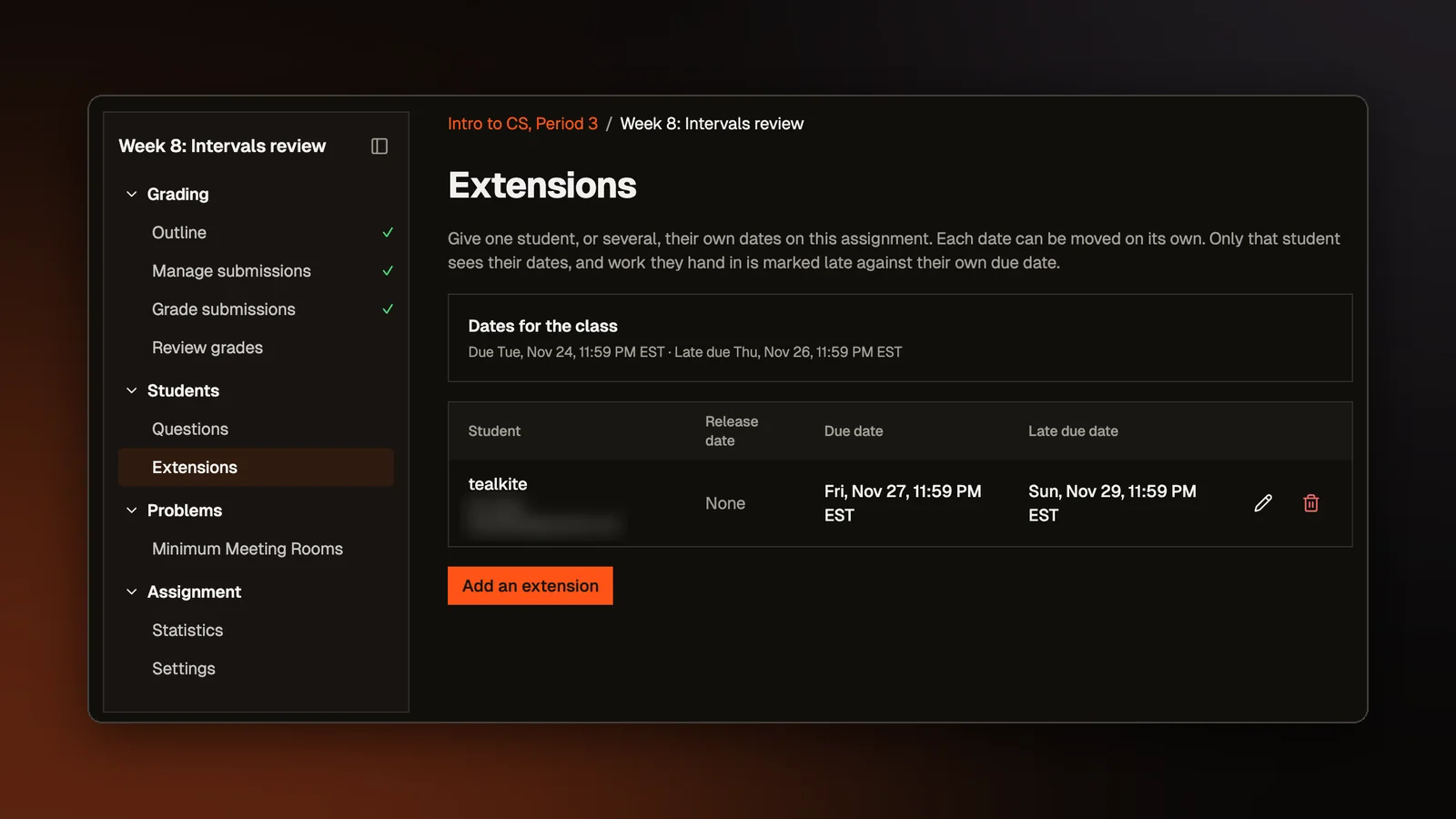
Each assignment has a new Extensions page. A teacher can give one student, or several at once, their own release date, due date and late due date. Only that student sees them. A student's page has a link to give an extension. The roster marks each student who has one. If the new dates have already passed, or the due date comes before the class's, the page asks the teacher to confirm before it saves. The Next up card on a student's home page uses the student's own dates.
Changing an assignment after it starts
The assignment's Outline page now edits the title and description, each problem's points, the order of the problems and the problems themselves. A teacher can add or remove a problem, change a coding problem's tests or change the right answer to a quiz question. Students' work is kept through every change.
When a coding problem's tests change, a banner says how many students were graded on the old tests and offers to run their stored code again. Before it starts, it shows how many code runs that will use. It never touches points a teacher set by hand. A changed quiz answer regrades the stored answers at once.
Each problem's points now count toward the total everywhere a total shows, including Review grades, Statistics, the student's Grades tab, the scoreboard and the grades file.
An assignment can also be duplicated without its students, work or dates. For the copy, the teacher picks the class, a release date or release at once, and a due date if they want one.
Forms that keep what was typed
The new assignment form is kept in the teacher's browser until the assignment is created. A refresh, the back button or a click in the top bar no longer loses it, and the browser asks before the tab closes. The form lists everything that needs fixing at once and says when a date typed in is already past. When our server refuses an edit to a problem, the form stays open with what was typed and shows the reason until the save goes through.
Open a sample class
A class as its teacher sees it, with assignments, students and grades. No account needed.