
Build with AI from a ready project
Teachers can hand a class one of our tested projects as a Build with AI problem, graded by the project's own tests. Adding problems to an assignment takes fewer clicks, and every problem page lists the assignment's problems down the side.
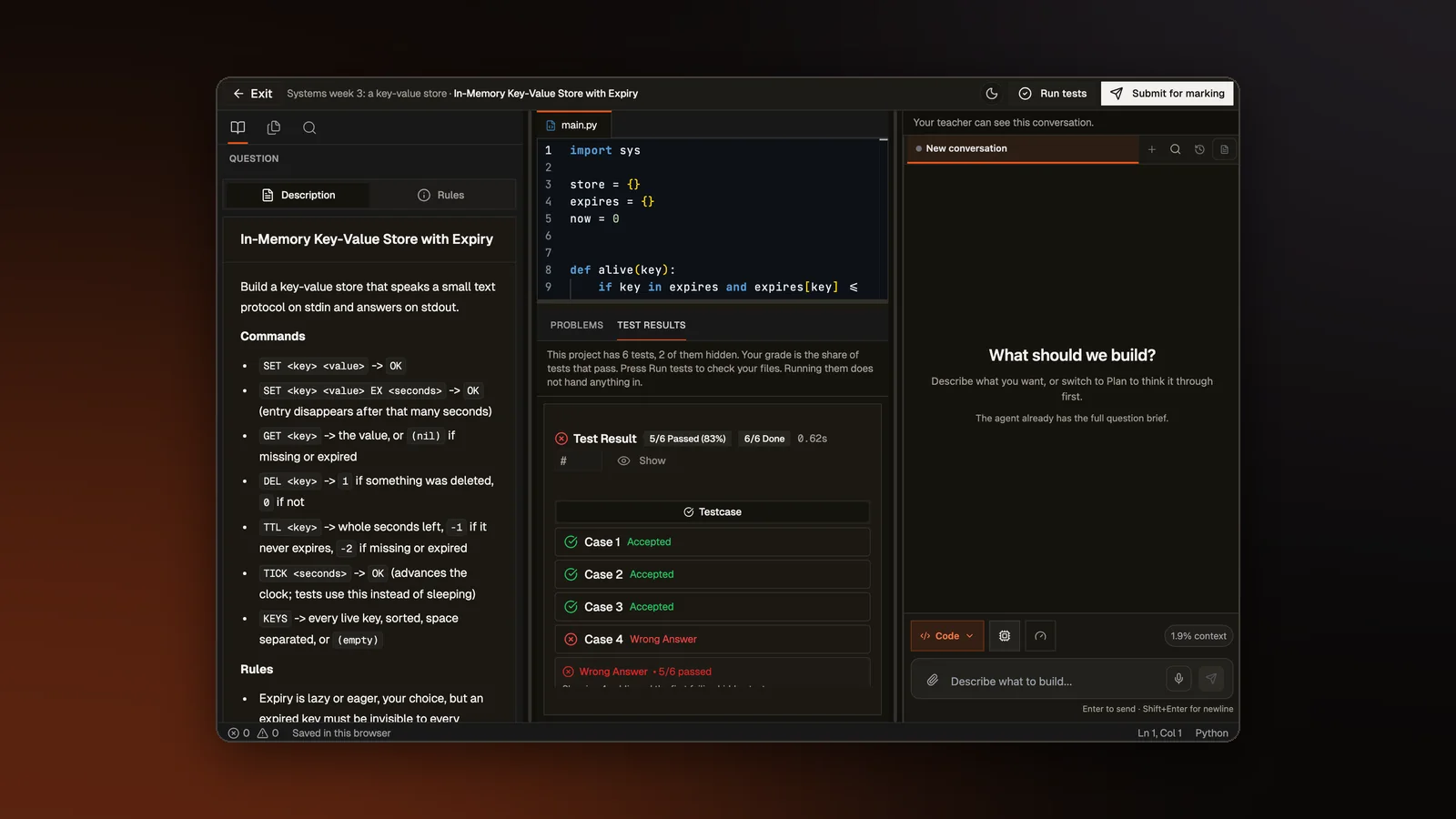
A Build with AI problem asks students to make something with an AI agent, such as a small app or a system with a few parts. Until this change, the teacher wrote the brief for each one, and an AI model marked what students handed in against the teacher's notes. Teachers can now pick one of the projects we already use in assessments, and the project's own tests decide the grade.
Picking a project
On the new assignment form, Build with AI has two buttons, Pick a project and Write your own. Pick a project opens the projects in our library that we can give to students. It leaves out projects that only work inside an assessment, such as those built against a reference app that only an assessment can reach. It also leaves out any project whose license is not ours or an open license that lets us share it. Build a System projects come first, since they suit data structures and systems courses. A teacher can filter by topic, difficulty, language and whether a project has tests, or search by name or skill.
Choosing a project fills in the title, the brief, the starter files in the language the teacher picks and the marking notes. Our server copies the project's tests into the assignment's answer key, which students never see.
Tests decide the grade
A student working on a project with tests gets a Run tests button and a Test Results panel. Run tests runs the tests on our server, the way an assessment runs them. A visible test shows its input, the expected output and what the student's code printed. A hidden test shows only whether it passed.
When the student hands the project in, the grade comes from those tests under the assignment's scoring rule. The marking notes now shape only the written feedback. A brief the teacher typed in is still graded by an AI model against the notes.
The build page matches the assessment
The page where students build now has the layout of our assessment editor. The brief sits on the left, with Explorer and Search beside it. Preview and the file tabs sit in the middle, over a panel with Problems, Console and Test Results. The agent chat is on the right, and a status bar runs along the bottom. A slim top bar holds the way back to the assignment, the title, Run tests and Submit. The site menu is gone from this page, so the work gets the whole window.
A project that is a plain program with no web page opens on its code, with no Preview tab. On a phone, the page shows Problem, Code and Agent as tabs.
Problems down the left edge
Every page a student opens an assignment problem on now lists the assignment's problems down the left edge, numbered, the way an assessment lists its questions. That covers coding problems, quiz questions, lessons and builds. The open problem is highlighted, a solved one shows a check, and picking another problem opens it. The build page saves the student's draft before it switches. The list shows on a computer when the assignment has two or more problems.
Adding problems takes fewer clicks
The Add problem menu used to list eight items, each with a note under it. It now lists the four kinds of work a teacher can add, which are a coding problem, a quiz question, Build with AI and a course lesson. Under each kind are buttons for where it comes from. A coding problem can come from the library, be written by the teacher, or be drafted with AI. Hovering over Draft with AI says what you get. For a coding problem, that is a handout, starter code, a solution, a rubric and tests, which the teacher edits before adding.
The library picker now has the same filters as the Practice library, including topics, search, difficulty, a rating range, a sort menu with a direction switch and Shuffle. A teacher can tick several problems and add them in one go. A live quiz still takes one problem at a time.
The form's AI card is now called Default AI help for this assignment, with No AI and Rena hints as the choices. Each problem can follow the default or take the other mode, and a problem that differs from the default is highlighted.
Questions from students
Students can ask questions about an assignment, and everyone on it can read the answers. A teacher can now read and answer those questions from the assignment's manage page, and the notice of a new question opens them there. They used to show only on the student page, so the notice's Answer it button led nowhere.
Open a sample class
A class as its teacher sees it, with assignments, students and grades. No account needed.