
The replay shows what the participant saw
An assessment replay now lays out the page at the participant's window size, draws typing as it happened, and follows a phone one pane at a time. It also shows the screens before and after the coding.
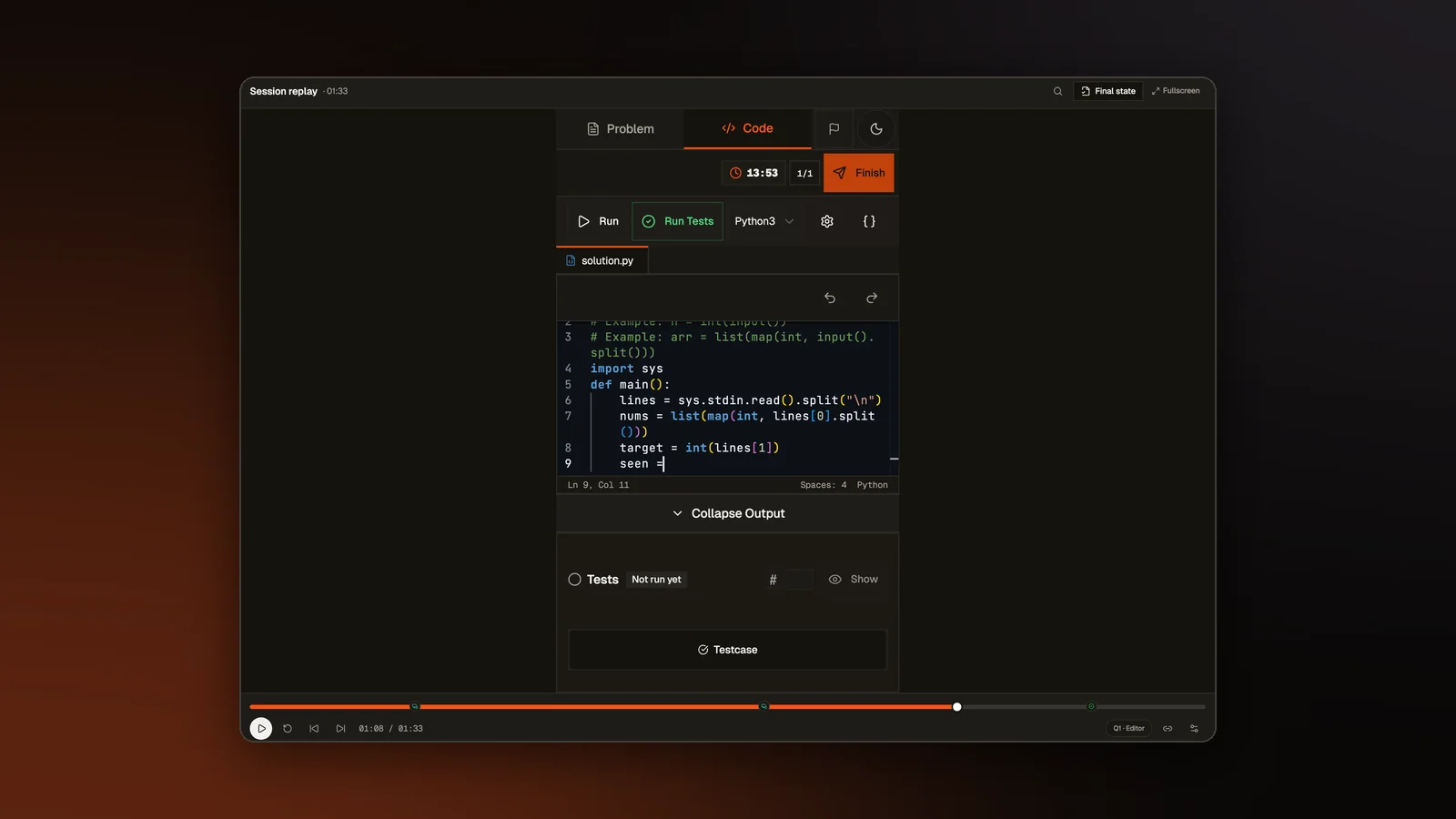
Every assessment on AlgoArena records the attempt so the organizer can watch it later. The replay draws the participant's page again from what the page recorded, with a timeline to move through. In July we wrote about why a replay should show what the candidate actually saw. Most of our assessment work in early November went into that goal. Each fix below was a place where the replay differed from what the participant had on screen.
Typing as it happened
The replay used to get the code from saves taken a second or more apart, so a line typed key by key appeared all at once. With Keystroke tracking off, which is the default, those saves were all it had. Every assessment page now records each edit the editor makes, with what changed and when, whatever that setting says. The replay draws the typing from those edits. Keystroke tracking now adds only the timing of each key, which the typing checks read.
Code also reaches the replay sooner. Typed code and pastes used to wait up to 30 seconds for the next save. The page now saves when typing pauses and at the moment of a paste. An edit from the AI now appears when its edit step finished. It used to wait for the whole reply to end.
The recording also reaches our server while the attempt runs. Before, a reload could wipe the replay of everything before it.
The page at their size
The replay used to lay out every attempt on the same stage, 1440 pixels wide and 860 tall. A participant with a taller window had a row in each terminal and in the agent panel that the replay cut off. The page now records the window size when it loads, and the replay lays the page out at that size before it scales it to fit.
A phone attempt was drawn as the computer layout. On a phone the assessment page shows one pane at a time, such as the problem, the code or the chat. The page now records which pane is open, and the replay shows the same pane and switches when the participant did. The replay also opens in the light or dark theme the participant had.
What the AI wrote, as it appeared
The replay of an AI chat now grows a reply's text as it streamed and puts each change card where the reply wrote it. Each step's row reads as the participant read it, with Waiting to run until a command was approved and Ran after. The replay used to write out thinking the participant never saw, about edits and results that had not happened yet. The replay now shows only the thinking that was on the participant's screen, which the page records along with the reply's text. Plan cards show as they were, folded or open, or being edited before they were sent. Text typed in a chat box and never sent shows too.
The terminal and the app preview
Some questions come with a Machine, a cloud computer with a terminal. On those, the replay now shows what the participant typed at the prompt before pressing Enter. It used to show an empty prompt until the command's output came. When the participant opened their own server in the Preview, we now keep a copy of the page it showed each time it loads. The server stops when the attempt ends, so the replay draws that copy in a frame that runs no scripts. Our privacy page, our terms and the notice participants read before they start list both of these records.
An app that uses random numbers, such as a dice game, used to roll different numbers in the replay. Each load of the participant's app now records the seed of its random numbers and its clock. The replay starts its own copy of the app with both, so dice, shuffles and IDs come out as they did for the participant.
Before and after the coding
Some assessments open with a planning screen, where the participant writes notes before coding starts. The replay now shows that screen, with the notes as they were typed and the clock as the participant read it. After submit, the replay used to stop at Assessment Submitted. The participant's screen went on to questions about their work, an explain video and a short self review, with a note as each one was saved. The replay now draws those steps as they were, with each saved answer when it appeared. It records whether the participant sent or skipped their rating of the assessment, never the rating itself.
Fewer false signals
Some fixes change what the report counts. The browser hides a page as it unloads it, so a reload was recorded as a switch to another tab. The report counted it against the participant, and the replay said they were on another tab. A reload is now named as a reload in the report and the replay, older attempts included. Skip idle, which jumps over stretches where nothing happened, used to jump past a section running out and past a Run and its result. It now stops around anything that was recorded.
Reviewers and viewers on a hiring assessment may not watch the replay. They no longer see replay buttons and links that led nowhere, and the report tells them plainly that they do not get it. On a hackathon, every role keeps the replay.
Open a sample report
A finished participant report with five skill scores and the full session replay. No account needed.